Caffeinated Calendar vs Google Calendar
An honest comparison from the developer of Caffeinated Calendar, including where Google Calendar is the better choice.
Last updated: 2026-06-09
If you’re searching for an alternative to Google Calendar, you’re probably one of a few kinds of people:
- Google already has your email, your search history, your location, and your photos, and your calendar feels like the last piece you’d rather not hand over.
- You’ve added calendars outside Google (an iCloud account, a work Microsoft 365 mailbox, a self-hosted CalDAV server) and Google Calendar handles them badly or not at all.
- You want a real native app that opens instantly and works offline, not a browser tab.
- You don’t want AI reading your calendar and inbox to “help” you.
Google Calendar is genuinely good software. It’s free, it’s everywhere, the web app is the best in the business, and if you live inside Google’s ecosystem it’s hard to beat. For a lot of people it is the right tool, and I’m not going to pretend otherwise.
But “free” is the part worth thinking about. Google Calendar is free because Google’s business is built on knowing things about you. Your calendar is tied to the same account as your search, your mail, and your phone, it isn’t end-to-end encrypted, and Google is now wiring Gemini AI through all of it. None of that is hidden, it’s just the deal.
I built Caffeinated Calendar because I wanted a calendar that connects to everything, runs natively on every device I own, works offline, and isn’t paid for with my data. That’s a different deal, and this page is about the tradeoffs between the two.
TL;DR
| Choose Google Calendar if | You already live in Google’s ecosystem (Gmail, Meet, Workspace), you want the best web app available, you value the deep Gmail integration that auto-adds flights and reservations, and the data-funded model doesn’t bother you. For a Google-centric life with no privacy concerns, Google Calendar is excellent and free. |
| Choose Caffeinated Calendar if | You want your calendar off Google’s account graph. Or you have calendar sources beyond Google (iCloud, Microsoft 365, self-hosted CalDAV, Zoho, Fastmail). Or you want a native, offline-first app on Windows, macOS, or Linux instead of a browser tab. Or you want event-level filtering and synced Calendar Groups. Or you want a calendar with no AI in it, ever. |
| Pricing | Google Calendar: free for personal accounts; bundled into Google Workspace for business (from roughly $7/user/month). Caffeinated Calendar is free on every platform; remote calendars sync through their own providers regardless. A subscription only adds cross-device sync of your local settings (filters, calendar groups, account configuration, and native Caffeinated calendars) and multi-user sharing. Plans: $49.99/year individual, $79.99/year for two users, $149.99/year for up to 5 users. |
Platform support
Google Calendar is a web product with companion mobile apps. Caffeinated Calendar is a native app on every platform, with the web being the one place it doesn’t run.| Platform | Google Calendar | Caffeinated Calendar |
|---|---|---|
| Web browser | Best in class | No web app |
| Android | Native | Native |
| iOS / iPadOS | Native | Native |
| Windows | Web only | Native |
| macOS | Web only | Native |
| Linux | Web only | Native |
| Works offline | Limited caching | Offline-first |
Event Filters and Calendar Groups
This is the feature I built Caffeinated Calendar around, and it’s a capability Google Calendar simply doesn’t have. It comes in two parts.
Calendar Groups. A Calendar Group is a named subset of your calendars that you switch between for context: a “Work” group, a “Personal” group, a “Family” group. Each group can carry its own accent color, you reorder them by dragging, and they appear as one-tap chips in the navigation drawer. Switching a group re-scopes every calendar view at once. Day, week, month, and agenda all follow. Google Calendar lets you toggle individual calendars on and off, but those toggles are not saved, named sets you can switch between, and they don’t behave the same way across the web app and the mobile apps.
Event Filters. This is the part Google Calendar has no equivalent for. A filter is a rule that hides or dims individual events inside calendars you can otherwise see. It is entirely client-side and view-only: the underlying event is never modified, and nobody else who shares that calendar is affected. I share calendars with my wife and family, but I don’t need their medication reminders or grocery errands filling up my work day, so I filter them out of my view and leave everyone else’s view exactly as it was. Google Calendar’s only tool here is hiding an entire calendar, which is all-or-nothing.
The filter engine has four rule types:
- Pattern: match on title, description, or location, by “contains” or exact match, case-sensitive or not, with multiple patterns per rule.
- Time-based: match by an exact start time, a time range, and/or specific days of the week, optionally restricted to recurring events only.
- Specific event: target one event and its entire recurring series by identity, created in a single tap from the event’s detail screen.
- All-day: match all-day events, optionally only recurring ones (useful for hiding a rotating on-call banner).
Every rule either hides the event (gone from the view) or dims it (faded but still visible, so you know it exists without it competing for your attention). Rules carry a priority order, so when more than one could apply you decide which wins. Each rule is scoped either to specific calendars or to all of them. You can disable a rule without deleting it. Hidden events automatically stop firing reminders, and you can optionally silence reminders for dimmed events too. Home screen widgets on Android and iOS honor every one of these rules.
| Capability | Google Calendar | Caffeinated Calendar |
|---|---|---|
| Toggle whole calendars on/off | Yes | Yes |
| Named, saved calendar groups you switch between | No | Calendar Groups |
| Groups sync across devices | No | Yes † |
| Hide or dim individual events inside a visible calendar | No | Yes |
| Filter by title / description / location text | No | Pattern filters |
| Filter by time of day / day of week | No | Time-based filters |
| Filter one specific recurring event | No | One tap |
| Dim instead of hide, with optional reminder suppression | No | Yes |
| Filters never alter the shared calendar | n/a | Client-side, view-only |
| Filters sync across devices | n/a | Yes † |
The week grid widget
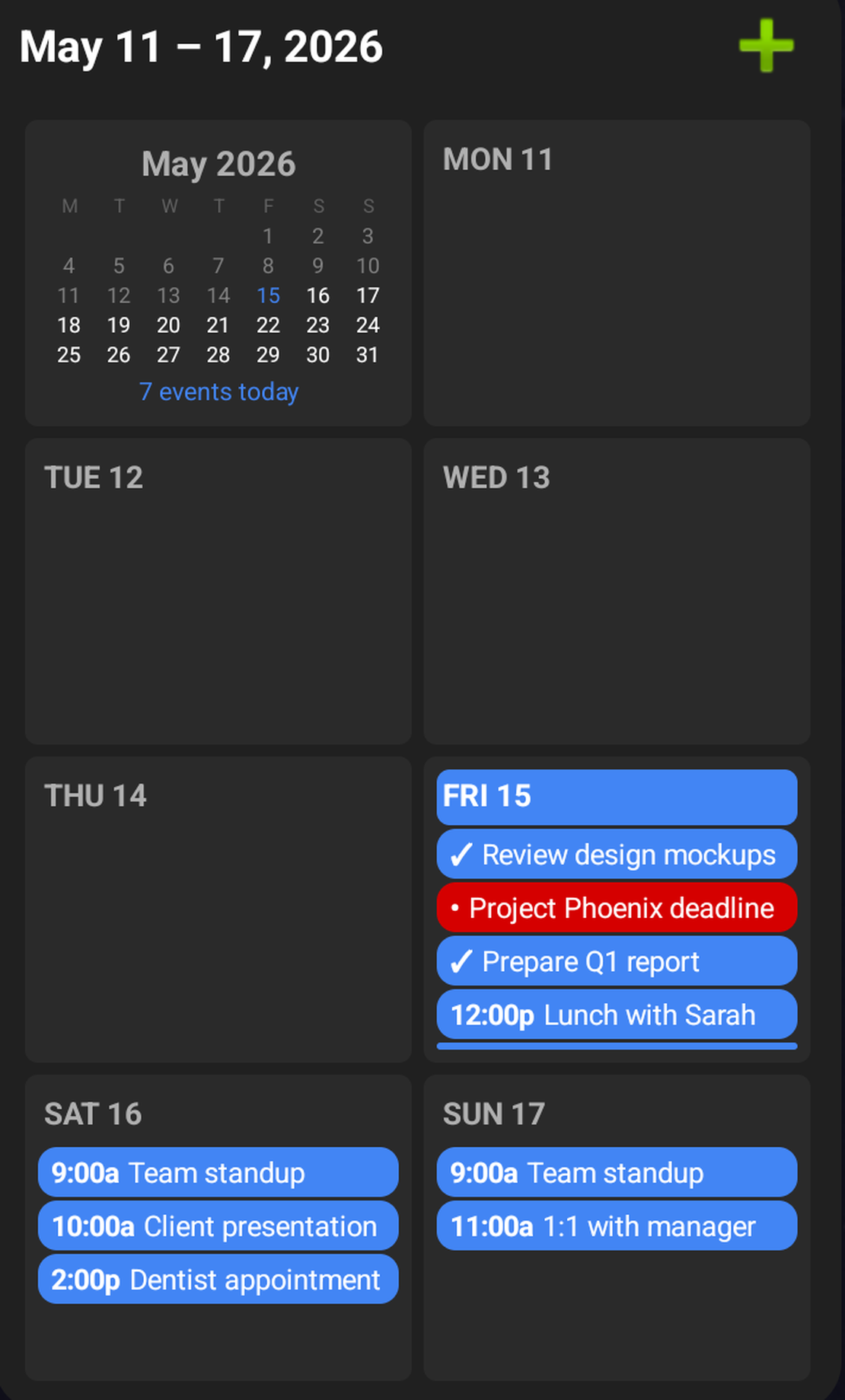
A small thing that turns out to matter a lot day to day: the Android week grid home screen widget. It lays your days out as a grid of cells with color-coded events, right on the home screen. No tapping in, no opening an app. You glance at your phone and your schedule is just there.
By default it’s a rolling view: today plus the next few days, so it always leads with now. Flip a setting and it becomes the full seven-day week with a mini month in the corner for the bigger picture (that’s the mode shown here). Google Calendar’s Android widgets are either an agenda list or a bare month grid without the per-day event detail. I haven’t found another calendar app, Google’s included, that puts a color-coded week on the home screen like this.
Privacy and data practices
This is the single biggest reason most people switch, so it’s worth being precise about.
Google Calendar is free because Google’s business is advertising and, increasingly, AI. Your calendar lives on Google’s servers under the same account as your search history, your email, your location timeline, and your Android phone. Google’s consumer privacy policy lets it use that data to operate and improve its services and to personalize your experience across Google. It is not end-to-end encrypted, which means Google can read your event contents, and Google is actively wiring Gemini through Calendar and Gmail so that an AI model processes that content too. Google states that it does not sell your personal information and that it does not use Google Workspace (paid) content for ads. Those are real commitments. But the structural reality is that you are a free user of an ad-and-AI company, and your calendar is part of the profile.
Caffeinated Calendar’s structure is the opposite. It is funded by subscriptions, so it has no reason to mine your data. You don’t need a Caffeinated account to use the app at all. It connects directly to your calendar providers with no Caffeinated server in the middle for the calendar data itself. There is no analytics or telemetry, no advertising, and no AI in the product. When you do subscribe for cross-device sync, the credentials that sync are encrypted with a key derived on your device before they ever leave it.
| Practice | Google Calendar | Caffeinated Calendar |
|---|---|---|
| Account required to use it | Google account required | No account needed |
| Tied to a broader identity/ad profile | Yes, your Google account | No |
| Analytics / telemetry in the product | Yes | None |
| Advertising business model | Yes | No, subscription-funded |
| End-to-end encryption of synced credentials | No | Yes |
| AI processing of your calendar/inbox | Gemini, expanding | None, by policy |
Calendar source support
Google Calendar is built around Google. It can subscribe to external ICS feeds, but it is not designed to be the place you unify an iCloud calendar, a work Microsoft 365 mailbox, and a self-hosted CalDAV server. Caffeinated Calendar is.| Source | Google Calendar | Caffeinated Calendar |
|---|---|---|
| Google Calendar | Native | Yes |
| Microsoft 365 / Outlook | No | Yes |
| Apple iCloud | No | Via CalDAV |
| Generic CalDAV (self-hosted, Zoho, Fastmail, etc.) | No | First-class |
| ICS / webcal subscription feeds | Yes | Yes |
| Device calendars (local on-device accounts) | Android | iOS & Android |
How Caffeinated thinks about subscriptions
This is worth its own section because it’s the core difference in business model between these two products.
Google Calendar is free because you are not the customer. The product is funded by advertising and the broader Google account, and that funding model is why it can be free forever. There’s nothing inherently wrong with that trade, but it is a trade, and it’s the reason this comparison keeps coming back to data.
Caffeinated Calendar (and every other app in the Caffeinated suite) takes money instead of data. Every feature in the app works for free, on every device, on every platform, forever. The app you install is the full app. There are no locked menu items, no “Pro” badges, no nag screens, no ads, and no upsells inside the product.
What the optional subscription pays for is infrastructure, not features. Specifically, two things: cross-device sync of your local configuration (filters, calendar groups, account credentials, and native Caffeinated calendars), and multi-user sharing between people on the same plan. Those are the only pieces that touch Caffeinated’s servers. Everything else runs locally on your device and talks directly to your calendar providers, so your remote calendars (Google included) keep syncing through their own back ends whether you subscribe or not.
The same subscription unlocks sync and sharing across the full Caffeinated suite, not just Calendar. One subscription covers Calendar, Notes, and Checkbook, and never asks you to upgrade to a higher tier to unlock a feature inside any of them.
The reason this matters as a comparison point: with Google Calendar, “free” is the whole pitch and the cost is structural. With Caffeinated Calendar, the app is free, the cost is an optional and explicit subscription, and if you only use one device you can use any Caffeinated app indefinitely without ever paying for it.
Natural language entry and AI
Both apps let you type an event in plain language. Google Calendar’s Quick Add parses a sentence like “Lunch with Sarah Friday at noon” into an event, and Google is rapidly expanding this with Gemini: drafting events from Gmail, suggesting times, and surfacing an AI assistant across Workspace.
Caffeinated Calendar’s Quick Add is rule-based, not AI-driven. It parses dates, times, durations, locations, and recurrence (“Lunch with Sarah tomorrow at noon at Café Roma for 1 hour”) and creates the event directly, ready to edit afterward if anything needs adjusting. It does the structured parsing well, but it does not read your inbox, propose events on its own, or run a model over your schedule.
That AI gap is deliberate, not a roadmap item. Caffeinated Calendar will not introduce AI features for parsing, scheduling, summarization, or content generation. Your calendar is not training data, and there is no model in the loop reading your events. If you want an AI assistant woven through your calendar and email, Google is moving aggressively in that direction and is the right tool. If you specifically want a calendar that does none of that, Caffeinated Calendar is the right tool.
Tasks
Both apps put tasks next to your events. Google Calendar shows Google Tasks inline, which works well if Google Tasks is already where you keep things and you stay inside Google.
Caffeinated Calendar stores tasks inside the calendar they belong to, with full task management: due and start dates, priorities, percent-complete, categories, and nested subtasks. Connect a calendar that supports tasks and they show up automatically; use a native Caffeinated calendar and the tasks live there. Tasks appear in Agenda and Day views and in the home screen widgets, and they work on every platform Caffeinated Calendar runs on.
| Feature | Google Calendar | Caffeinated Calendar |
|---|---|---|
| Tasks shown alongside events | Google Tasks | Yes |
| Where tasks come from | Google Tasks only | Your calendars themselves |
| Priorities, percent-complete, categories | Limited | Yes |
| Nested subtasks | One level | Unlimited depth |
| Works without a Google account | No | Yes |
What Caffeinated Calendar doesn't have
Honest section. Here are the Google Calendar strengths Caffeinated Calendar genuinely can’t match today:- A web app. Google Calendar in the browser is best in class; Caffeinated Calendar has no web version at all.
- Deep Gmail integration. Google automatically adds flights, hotels, and restaurant reservations from your inbox. Caffeinated Calendar does not read your email and won’t.
- One-click Google Meet, Find a Time scheduling across attendees, appointment booking pages, and working-location features.
- Ubiquity. Almost everyone has a Google account, so sharing and invitations are frictionless in a way a smaller app can’t match.
- A massive third-party integration ecosystem (Zoom, Zapier, and effectively every SaaS product).
- AI assistance. If you want Gemini drafting and triaging your schedule, Google is investing heavily there and Caffeinated Calendar deliberately is not.
Who should choose what
Choose Google Calendar if
Your life already runs on Google, you want the best web app available and frictionless sharing with everyone else who also has Google, you value the automatic Gmail integration, and the data-and-AI funding model doesn’t bother you. For that user, Google Calendar is excellent, free, and hard to beat. A real-world example: my wife stays on Google Calendar, and it’s the right call for her. She lives entirely in Android, on a phone, a tablet, and a Chromebook, and our shared family calendars are all Google calendars, so a second app would just be overhead. The one thing tugging her toward switching is the week grid widget above. No other calendar she’s tried, Google’s included, has anything like it.Choose Caffeinated Calendar if
You want your calendar out of Google’s account graph. Or you have calendar sources beyond Google and want them unified in one native, offline-first app on Windows, macOS, Linux, iOS, or Android. Or you want event-level filtering and synced Calendar Groups. Or you want a calendar funded by a subscription instead of by your data, with no AI in it.Choose neither if
Your phone’s built-in calendar already does everything you need. Both Google Calendar and Caffeinated Calendar are for people whose situation has outgrown the basics: multiple calendar sources, shared calendars, or strong opinions about organization and privacy. If none of that is you, you may not need either.Download Now
Caffeinated Calendar is available on iOS, Android, Windows, macOS, and Linux.





The app is always free. Try multi-device sync free for 14 days, no credit card required.